I will try to keep this section as brief as possible, as it is a very individual matter.
BIOS-Update:
If the BIOS has not yet been updated to the latest version (F.60 Rev. A), I would do so now at the very latest.
The updater runs on Windows, so an operating system must be installed—preferably Windows 7, which was originally installed on these notebooks when they were shipped.
Link to the file:
BIOS F.60 Rev. A for the 8540p (archive.org)
What operating system(s) would be suitable for the EliteBook 8540p?
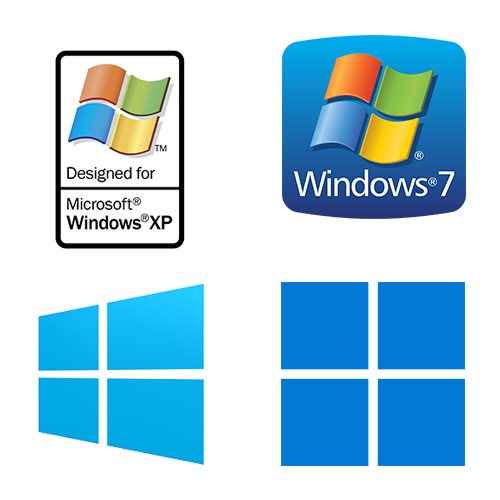
Driver support starts with Windows XP, which was also the prerequisite for upgrading this notebook model in the first place. I ultimately decided on the following, very maximum operating system configuration:
- Windows XP Pro, Service Pack 3 (32-Bit)
- Windows 7 Ultimate, Service Pack 1 (64-Bit)
- Windows 10 Pro, 22H2 (64-Bit)
- Windows 11 Pro, 24H2 (64-Bit)
The limit is four systems regardless, as MBR is not only limited to a maximum partition size of 2 TiB, but can also only handle a maximum of four primary partitions, and Windows can only be booted from these. Because Windows XP should be installed on it, MBR forces me into these limits (as previously written in the “SSD” article in this series, XP only supports MBR).
I won’t document the exact installation of these systems here, as there is more than enough information on the internet if you have any questions.
The order is particularly important:
First, install Windows XP. It is best to use another computer to create an NTFS partition of the desired size on the planned drive beforehand. Of course, set this up as a primary partition at the very front of the data carrier.
Then insert the drive into the notebook, start the Windows XP installation either from an optical data carrier or USB stick (boot menu), and install it on the existing partition. Just that for now, no drivers, etc.
Then start the Windows 7 setup in the same way, create a new partition behind the existing XP partition during the process, and install. Again, no drivers for now.
Now do the same with Windows 10.
Finally, do it again with Windows 11.
So, from old to new.
This process has the advantage that with each additional operating system that is newer than the previous version, the older system is automatically recognized and entered into the boot loader. Ultimately, there are four selectable entries when booting the notebook (or possibly three, because Windows XP uses a different boot loader than all subsequent versions).
These can of course be customized. For legacy systems like this, I use EasyBCD, which has always worked very well, always on the latest operating system (i.e., install it on Windows 11!).
Why is that…?
To ensure that the latest possible boot loader is used in the MBR – especially since, starting with Windows 8, the so-called “Metro” look can also be enabled optionally with EasyBCD. It looks nicer and more modern, so I usually use this one.
If an entry is missing, it can also be quickly added later with EasyBCD.
All that remains for me to say is that the appropriate drivers from HP should be used for Windows XP, the same applies to Windows 7 (Note: was a 32-bit or 64-bit system installed?), and everything runs smoothly with the drivers for 7 for Windows 10 and 11.
For original graphics cards, search for the latest driver from Nvidia and use the one that matches your operating system. For unofficial modifications like I did, use the modified, compatible, and latest driver.
Click here for the original drivers from HP
Next, I will summarize this project and what I would do differently next time.