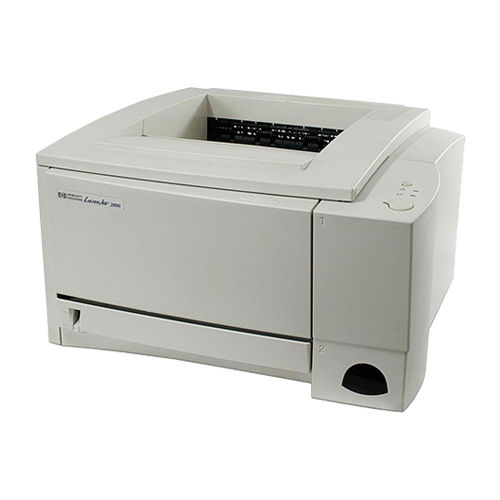
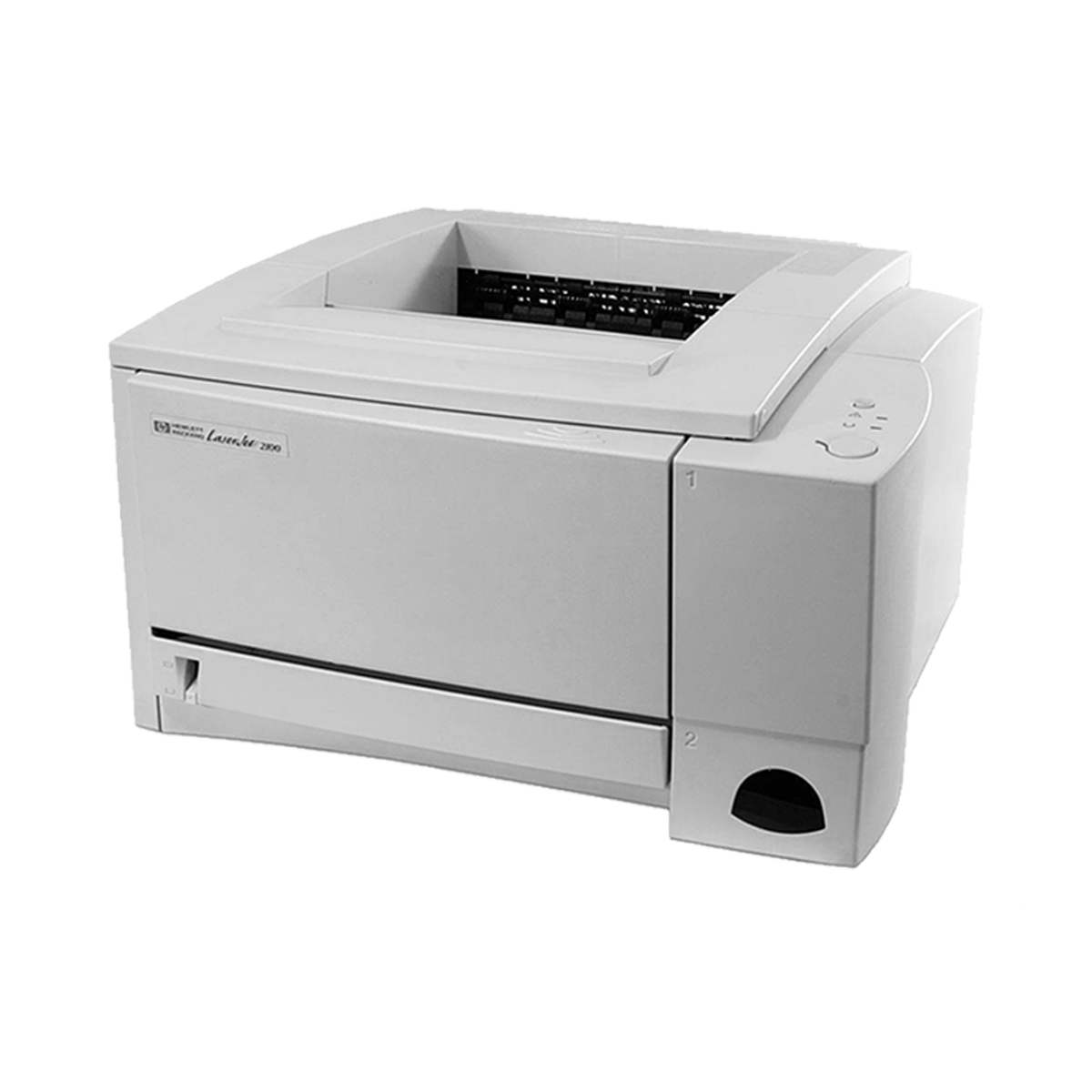
Not too long ago, I came across this fossil of a monochrome laser printer, with a request to dispose of it:
 ⧉ HP
⧉ HP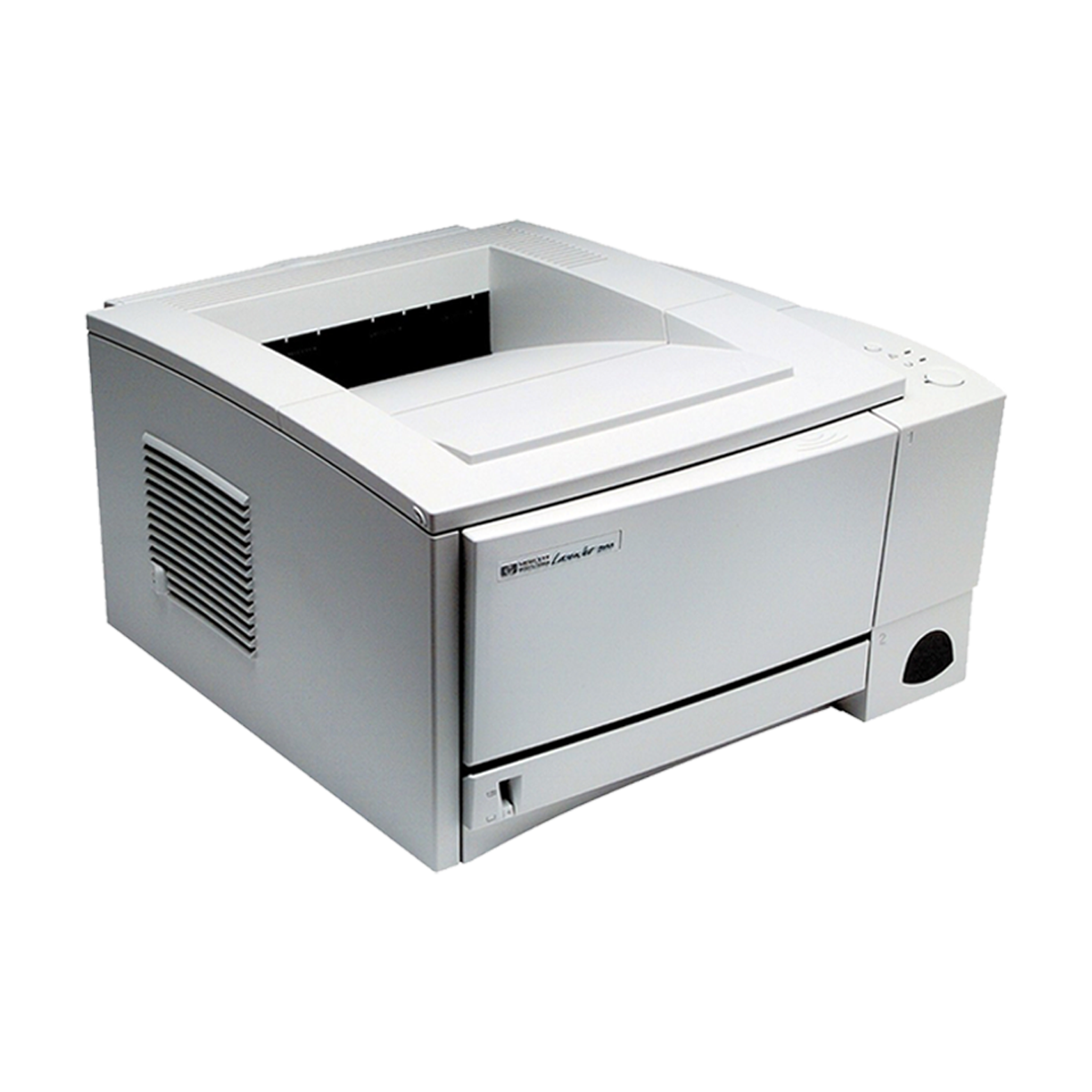 ⧉ HP
⧉ HP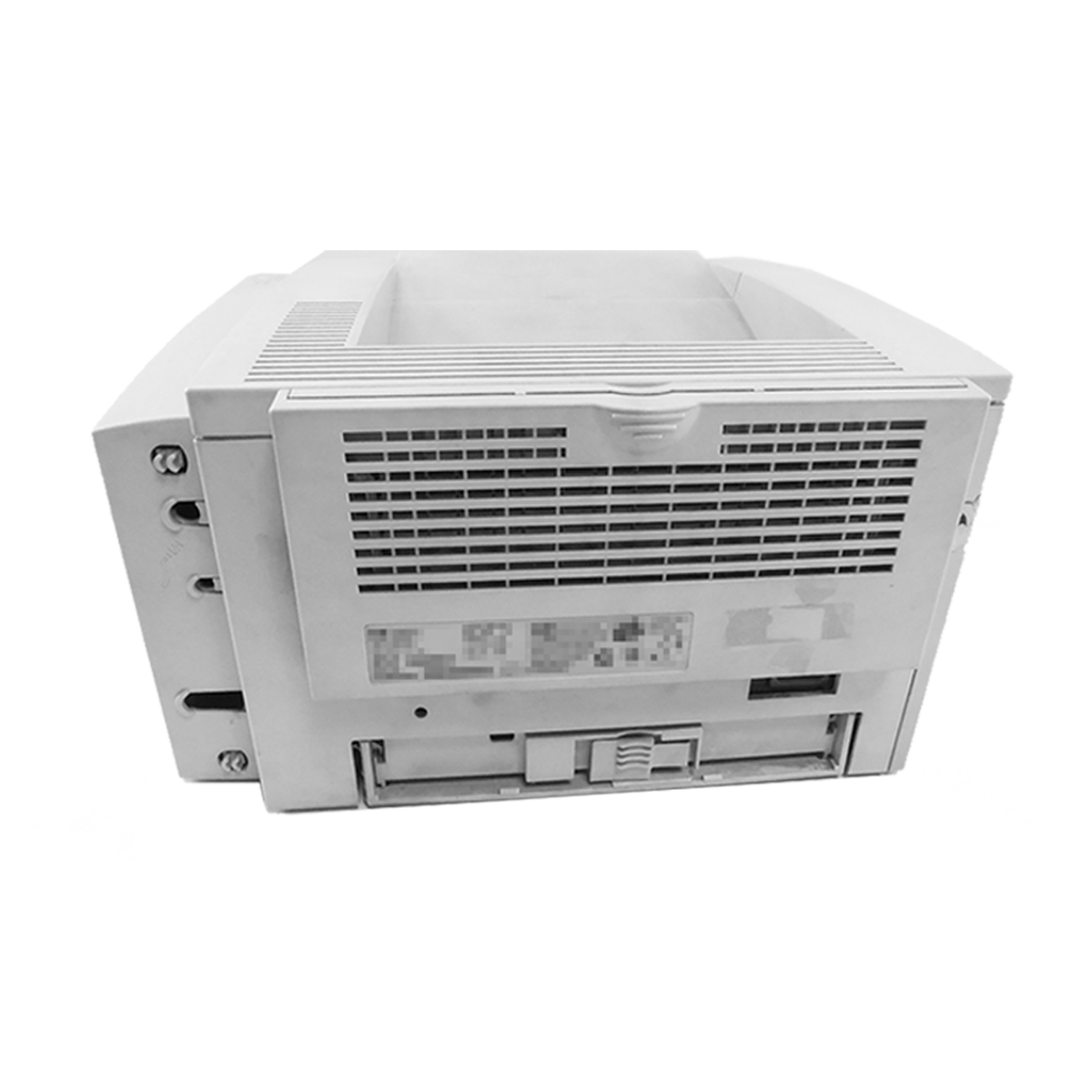 ⧉ HP
⧉ HPBefore throwing it away, I googled it, and my interest was piqued. Should I save this device from the scrap heap? I immediately liked the fact that it only has two buttons and a power switch on the side, that’s it. The easiest way to decide something like this is to weigh up the pros and cons compared to a modern printer.
The starting point:
We currently have two printers in use, both of which are multifunction devices.
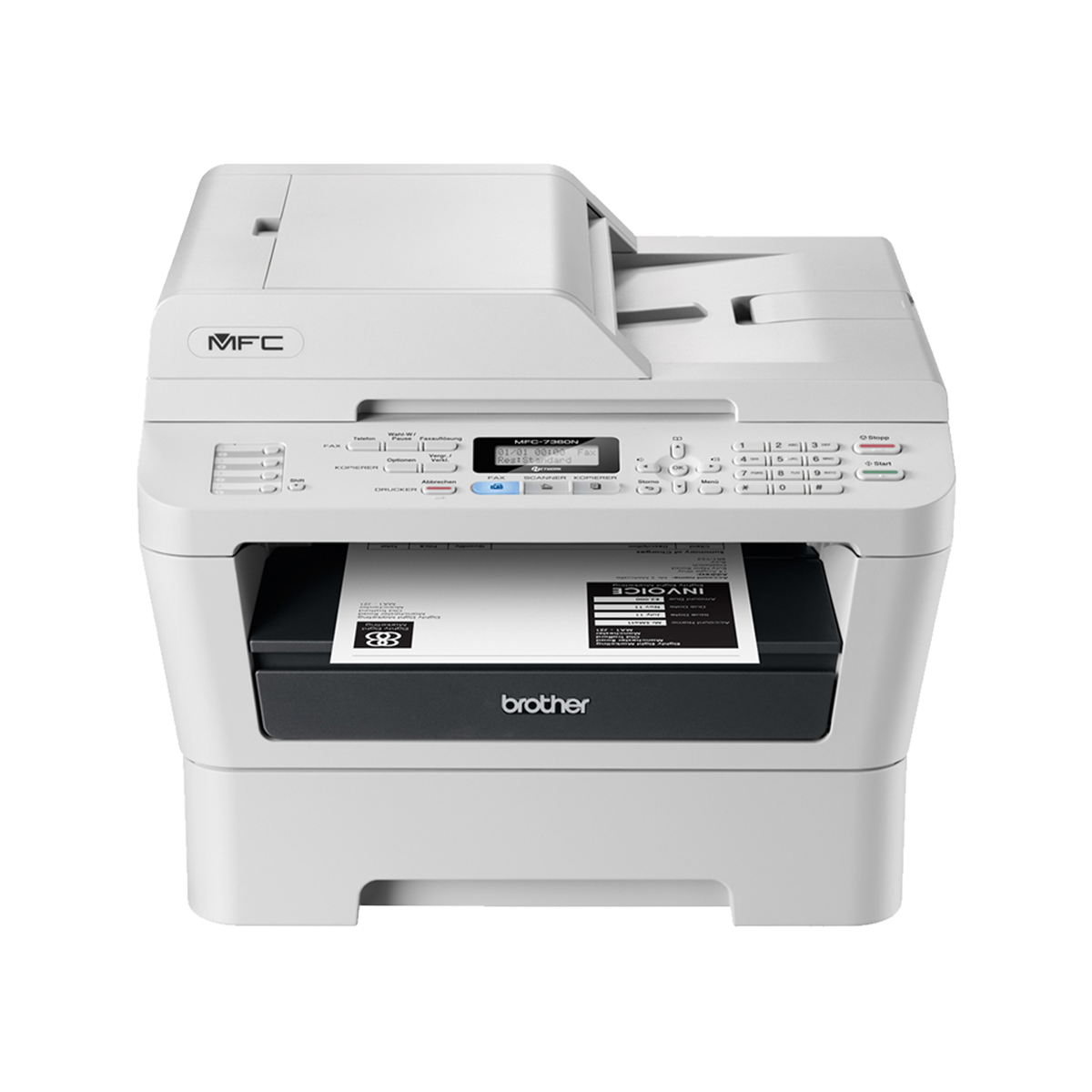
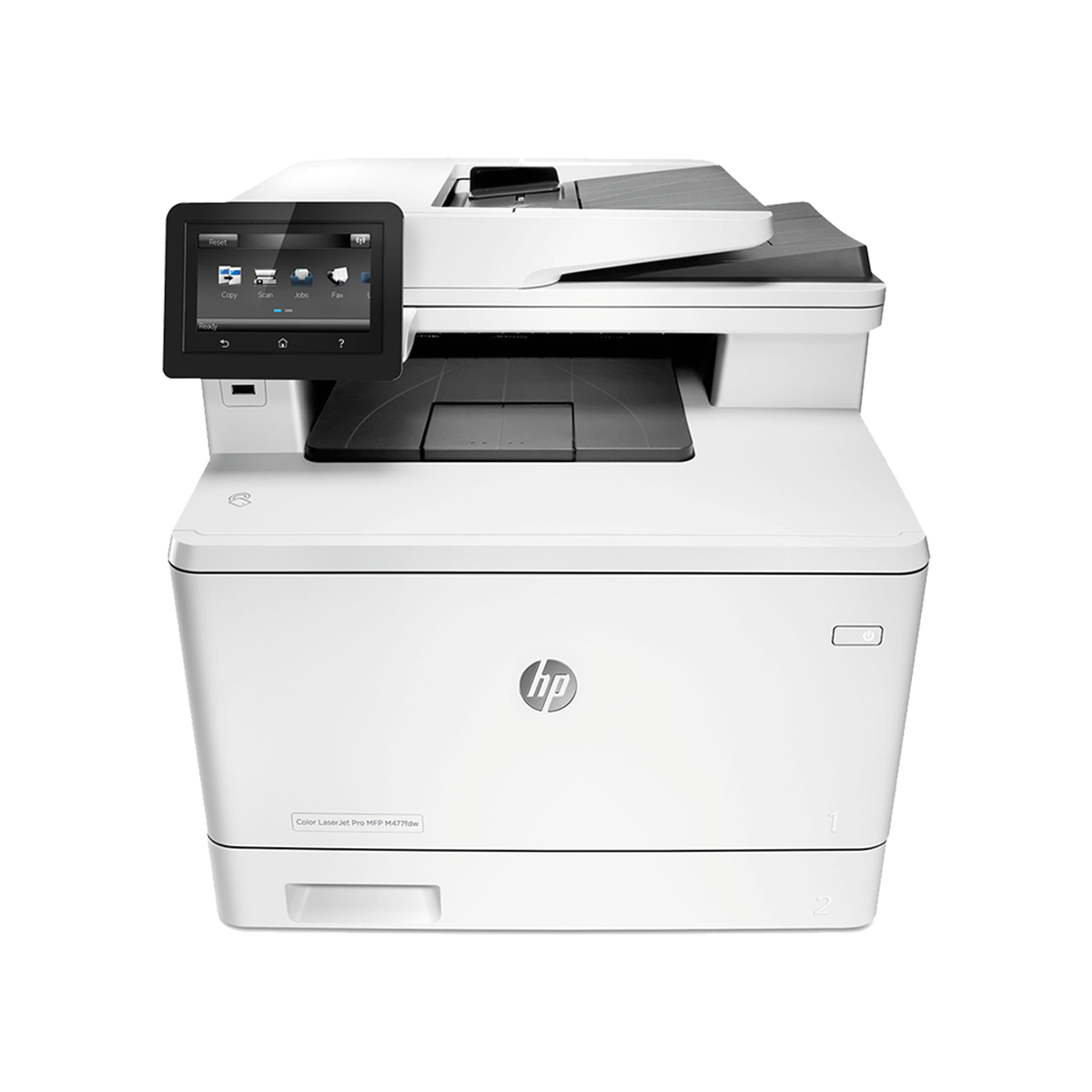
Both are laser printers, a monochrome Brother* and a color HP Color LaserJet Pro (Newer model*):
 ⧉ Brother
 ⧉ HP
⧉ HPI also ended up with the Brother, as well as the HP LaserJet 2100M.
I bought the HP second-hand—it prints well, quickly, and can do just about anything.
Years ago, it replaced a very unreliable HP Photosmart inkjet printer (due to infrequent use). So why have multiple printers?
The original toner cartridges for the M477fdw* are expensive, and I have had several very unpleasant experiences with refilled or non-original cartridges from various toner and printer manufacturers. In addition, the durability of the wear parts is no longer what it used to be.
The Brother has the great advantage of being monochrome—meaning it only has one toner cartridge—black.
These are relatively inexpensive*, even from Brother directly. Other replacement parts such as rollers or replacement drums are also affordable, at least. Unfortunately, they didn’t skimp on buttons and key combinations.
It prints well, but has already had to work hard and therefore shows slight signs of wear.
What does he need to be able to do to be considered?
My requirements for a printer, in order to decide whether I consider a model to be worth using, are clear:
- Network-compatible, preferably via Ethernet, Wifi if no other option is available
- Low maintenance costs
- Acceptable print quality
- Preferably not an inkjet printer—long periods of non-use are very unfavorable (drying out)
- OPTIONAL: Drivers that don’t cause any problems
After looking in the service manual (https://www.laserexpressinc.com/manuals/HP/hp-lj-2100-service-manual.pdf, archive.org) and the German user manual (https://printego.de/mediafiles/pdf/Laserdrucker/HP/HP%20LaserJet%202100-handbuch.pdf, archive.org) the decision has been made:
If financially feasible and repairable, the HP LaserJet 2100M will remain in use!
Why and how come? Simple:
- The mechanics are very robust.
- Any relevant spare parts are easy to obtain.
- The print quality is really good at 1200 x 1200 dpi, especially considering its age.
- IEC power connector*. Standard.
- The documentation is very good. It could hardly be better.
- No ozone, it’s that modern – luckily, because that would have been a deal-breaker. Health comes before economy.
- The “M” model has an additional 4 MB memory bar installed at the factory, along with PostScript capabilities! (Presumably, M stands for Macintosh, which was necessary or advantageous at the time).
- Toner is cheap*, even from third-party suppliers, and lasts a very long time (5000 pages at 5% coverage!).
- The RAM is expandable (4 MB was standard, so the “M” model with an additional 4 MB has a total of 8 MB)!
- The most important thing for me: you can optionally upgrade to network functionality!
If you read a little about this printer on the Internet, you will find that it seems to have been a real “workhorse,” and many older people among us still mourn the loss of this model series today. Especially in HP’s home country – the USA.
Having a monochrome alternative to the existing Brother is also no mistake, because who knows if something will become irreparably defective one day.
Is it printing at all?
First, I simply pressed the two buttons on the large dial to print a test page. That’s what it says in the manual.
Disappointing, everything is covered in streaks and the opacity is only half there – but at least the rest seems to be working, no unusual noises, etc.
The proportions are correct where the print should have been, i.e., the mechanics are working as intended (the spacing is good, no perspective distortion, etc.).
Next, as also described very well in the manual, open and close all maintenance flaps.
What do I see? The toner is ancient, from a third-party supplier, and has also been refilled with a bottle (the necessary hole was sealed with tape). There was also some toner dust on the toner roller, which shouldn’t be there. All of this could explain the poor print quality.
In addition, the “interior” is visibly dirty, especially the rollers.
So first of all, remove everything you can, blow it out, and clean everything carefully (isopropanol*).
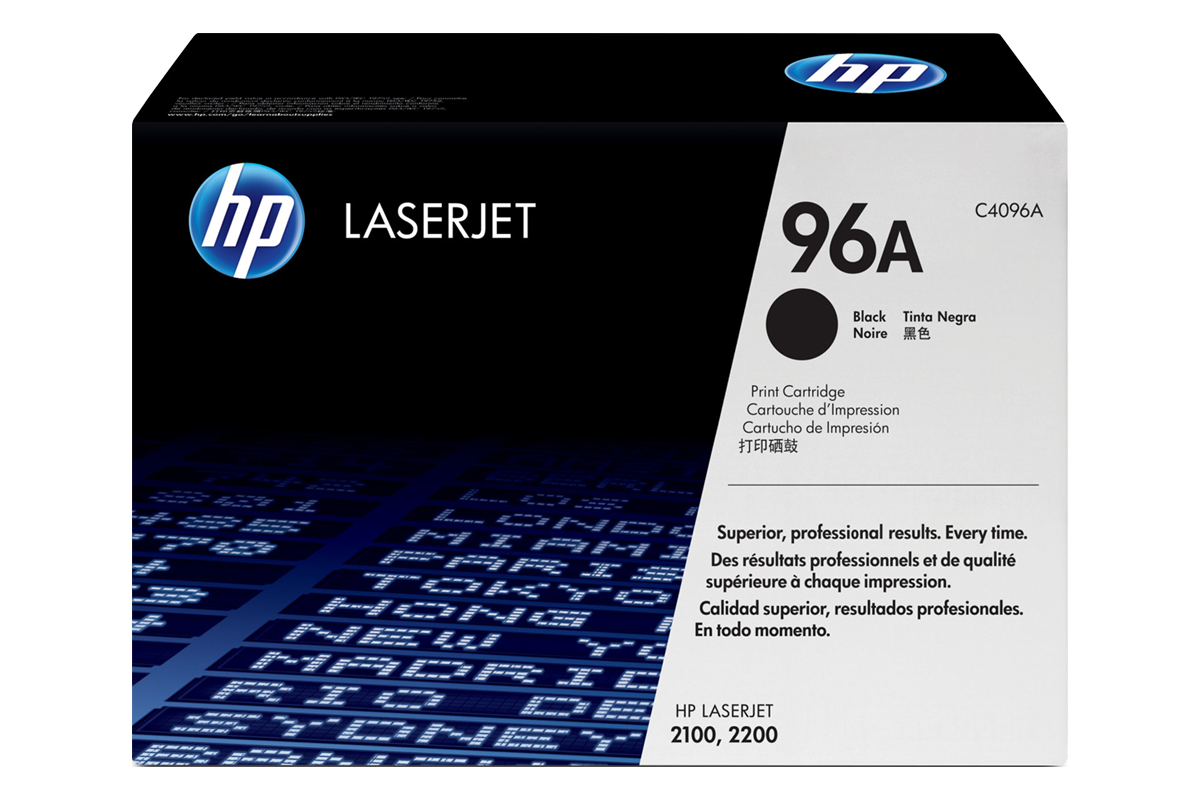
Without knowing whether it would help, I went in search of a better, preferably original toner cartridge:
I quickly discovered a significantly overpriced but originally packaged HP toner cartridge (96A) from a commercial supplier. It couldn’t have been any cheaper than new old stock:
 ⧉ HP
⧉ HP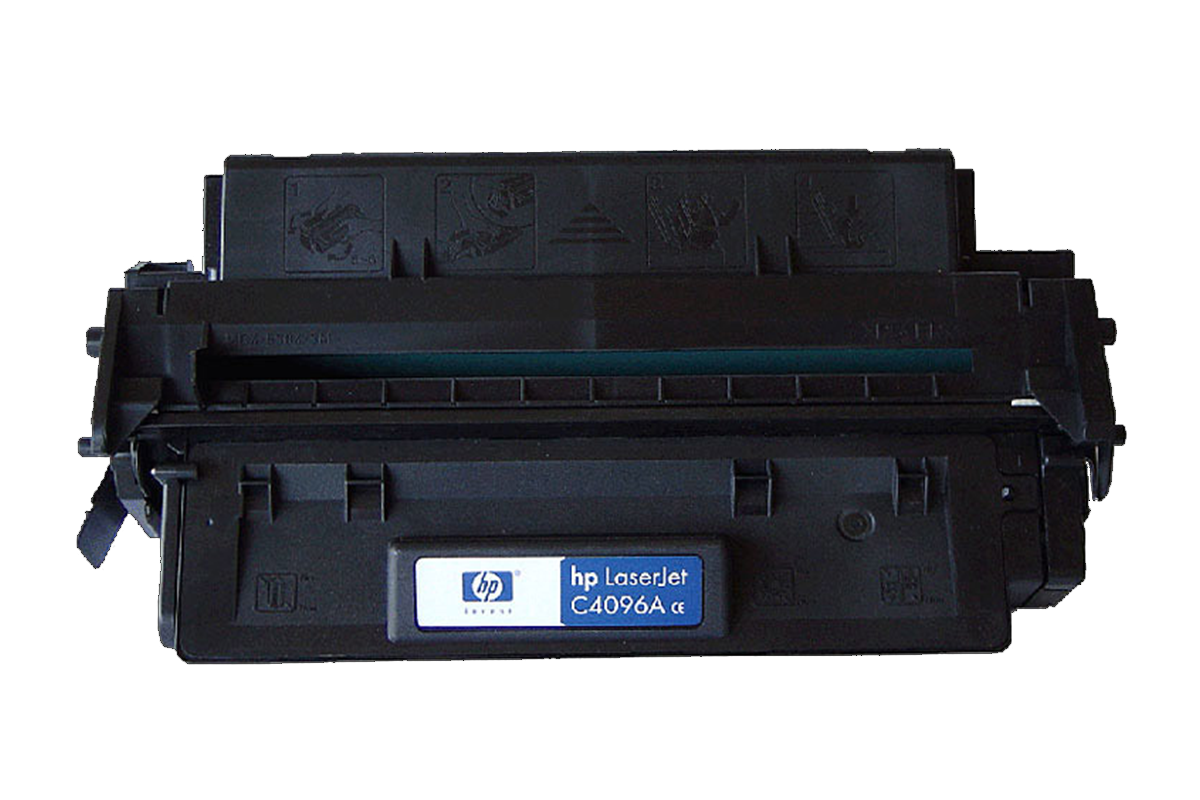 ⧉ HP
⧉ HPOnce the toner arrived, I installed it immediately. The printer itself had already been thoroughly cleaned and reassembled.
And lo and behold: the 2100M prints, and even prints really well!
On the first clearly legible test page of the 2100M, I discovered that this model had printed just ~13,200 pages in its “working life” – which is really not much for a business laser printer (a toner cartridge is supposed to last for 5,000 pages, so the device has probably only seen three). The service manual states on page 13 that this model is designed for approximately 15,000 pages per month.
Of course, this value could have been reset, as I will do later.
But the overall condition actually contradicts this – not even the plastic housing is anywhere near yellowed. There was also no typical wear and tear inside, such as grooves, scuff marks, or a lot of paper abrasion.
What can be improved? More RAM!
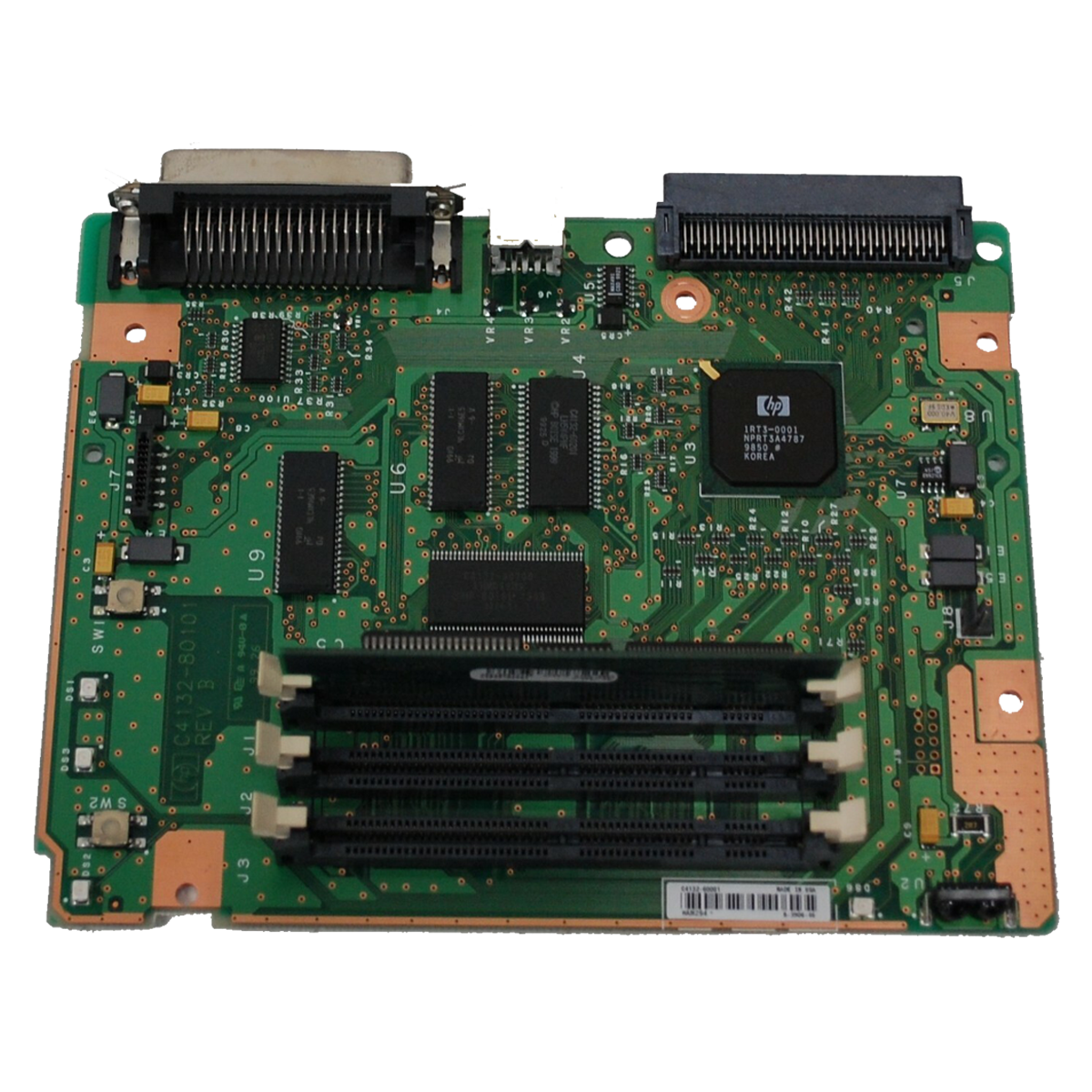
From a technical point of view, the printer must have a total of four RAM banks, one of which is permanently assigned and directly equipped (i.e., without a slot) with 4 MB.
Therefore, there are only three slots under the plastic cover above the mainboard, of which the rearmost slot in the 2100M is additionally occupied with the special “4 MB incl. PostScript emulation” module described above. This results in a total of 8 MB RAM.
 ⧉ HP
⧉ HP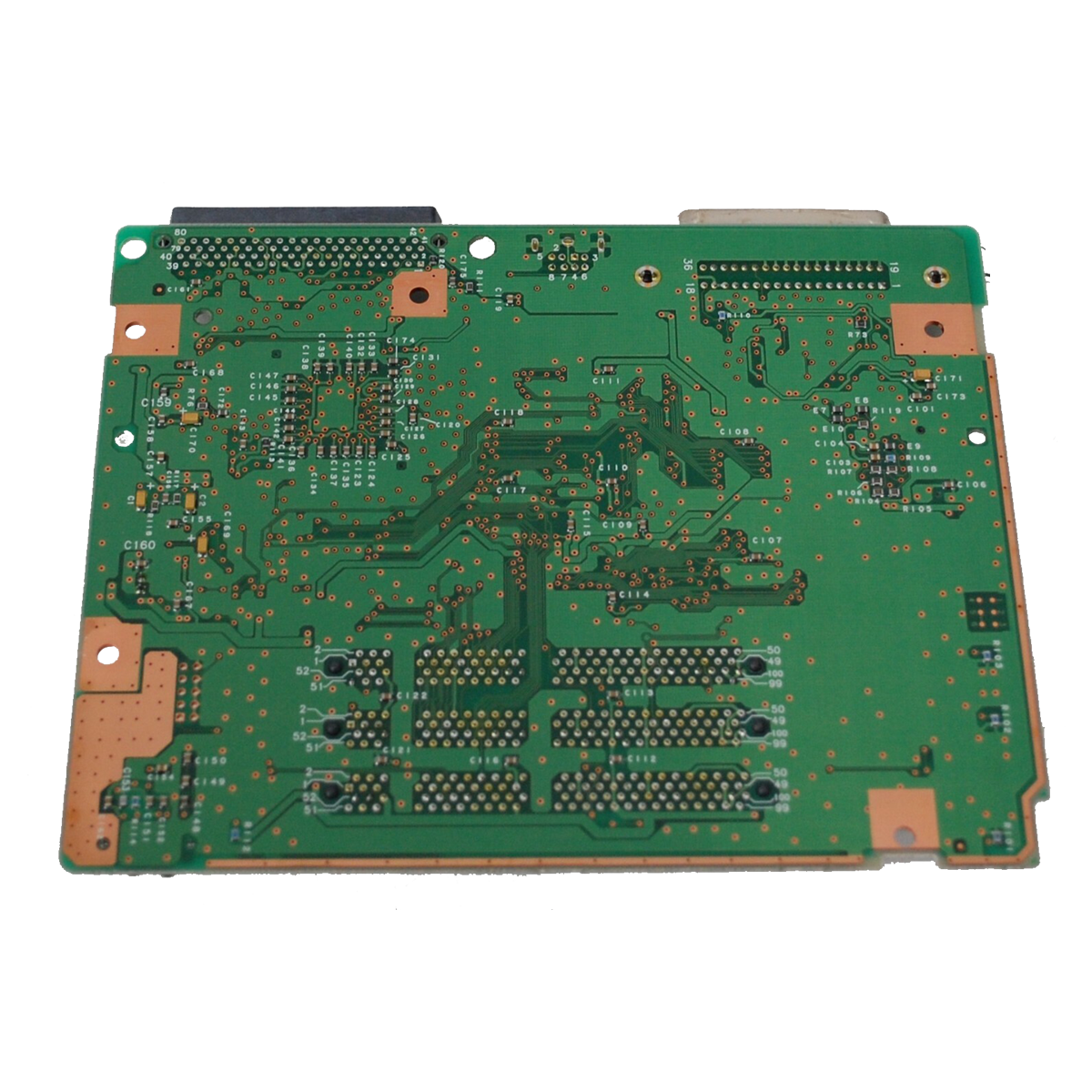 ⧉ HP
⧉ HP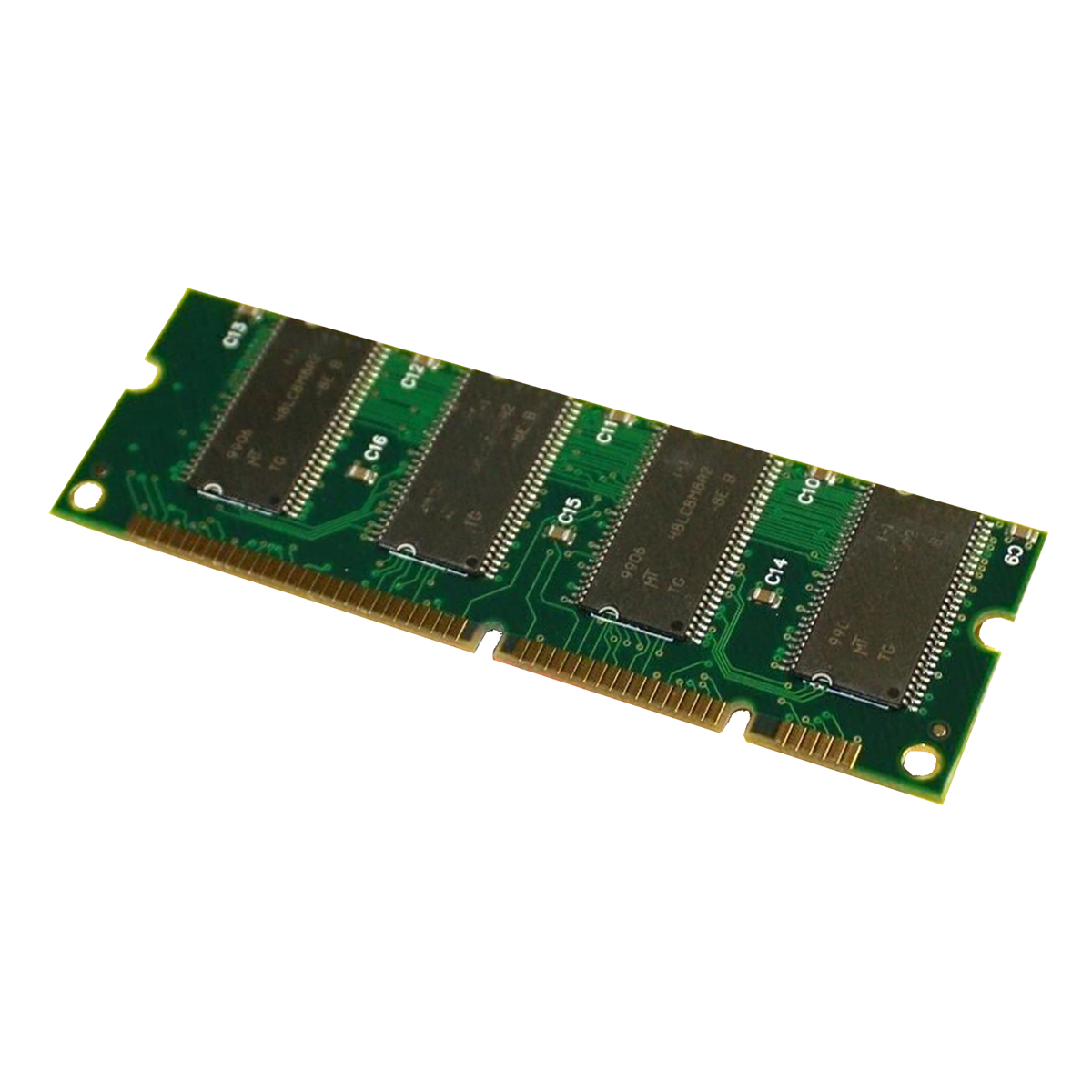 ⧉ HP
⧉ HPTo expand the whole thing, I bought two used DIMMs with 4 MB each for the two RAM slots still available on the printer’s mainboard, adding 8 MB – giving a total of 16 MB with PostScript emulation.
According to the manual, a maximum of two 32 MB modules would have been possible, resulting in a total of 72 MB (32 + 32 + 4 + 4), or even 100 MB if the 4 MB PostScript DIMM had been removed.
At the time, however, only the aforementioned 4 MB modules were really affordable and compatible for me to purchase, and more RAM doesn’t directly make the printer faster, it just provides more space for data (let’s be realistic, $50 plus shipping for ONE 32 MB memory module would be completely disproportionate, which was roughly the price).
I didn’t plan on breaking any world records with PDFs, so I found 16 MB acceptable (better than 8 MB).
If I ever come across larger sticks in the right format (8 MB, 16 MB, or ideally 32 MB) at a reasonable price, I might replace them after all. But I don’t think so.
What else can be improved? The interface, network!
In my opinion, the most important upgrade by far, which suddenly makes the old device very useful again, is mentioned on page 36 of the user manual—the possible expansion cards that fit into the device—for network functionality. The mere fact that this EIO card slot (EIO = Enhanced Input/Output, proprietary to HP) exists at all (on the motherboard, top right connection) shows that devices used to be designed differently – more durable, more maintainable. These are the compatible options:

Without one of these cards, printing is only possible via the parallel port (LPT), LocalTalk, or infrared—none of which are particularly convenient options these days. USB was not yet available on this model, but I wouldn’t have wanted local printing anyway. It is possible to adapt LPT to USB at a reasonable cost, but as I said, networking is the goal.
So I went in search of the only sensible option available today (100 Mbit, i.e., Fast Ethernet—this will definitely work with any network device such as a switch or router upstream; 10 Mbit is already very outdated. I don’t think the theoretically higher speed of 100 Mbit will have much influence on the actual data transfer speed of the printer—everything else in this Stone Age device limits it anyway) in the list above.
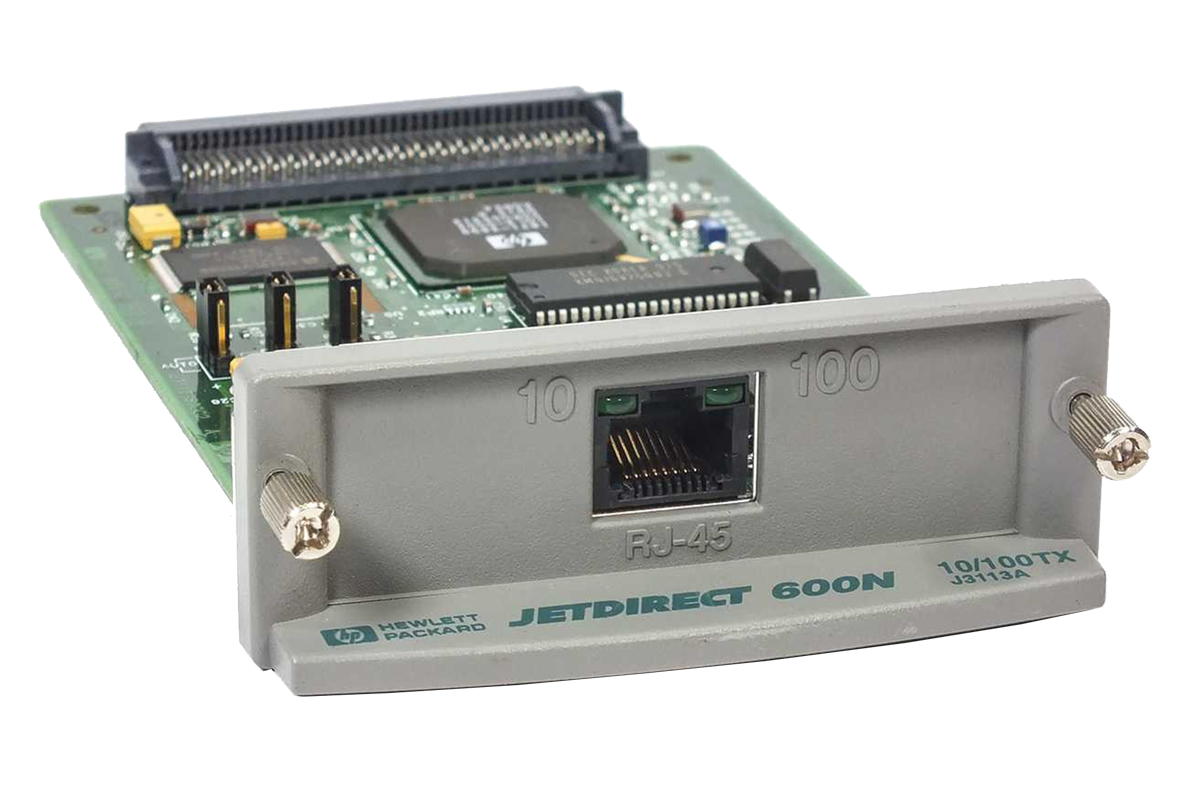
I was able to purchase a used JetDirect 600N card in what I consider to be the optimal J3113A version, i.e., Fast Ethernet (10/100 Mbit), for just €12.40 including shipping:
 ⧉ HP
⧉ HP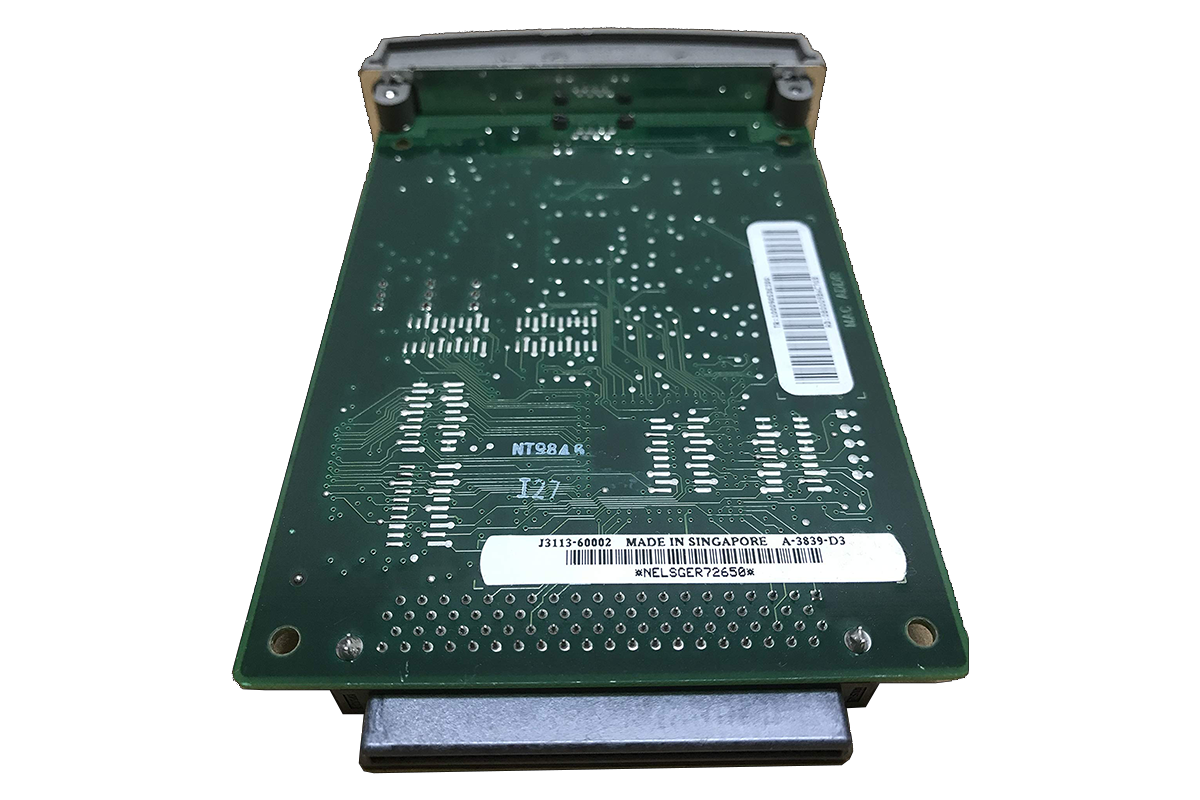 ⧉ HP
⧉ HPCommunication via the network was initially impossible because the existing configuration had disabled DHCP (statically configured). By reading the manual, a full reset of everything was quickly accomplished without having to use LPT, and the 2100M now happily communicates at 100 Mbit on the local network via an IP assigned by the router, as DHCP is now reactivated (and working perfectly).
Controls, settings?
It should be mentioned that this printer, more precisely via the now retrofitted JetDirect-600N print server, could also be configured with software that is as old as it is completely incompatible today called “JetAdmin” or a web interface (yes, seriously!). I even got the software to run on Windows XP.
It turned out that this exercise was not in vain – after a full reset, the printer was set to the US-typical “LETTER” format with regard to page margins and standard format, but I was able to change this back to “DIN-A4” using the software. The test page already looked much better in terms of the side margins. I then changed the name of the printer there as well, to make it easier to find on the network.
The web interface only runs in a (very) old version of Internet Explorer with the Java plugin enabled – that also just about worked under Windows XP, but even then I had to turn down or disable absolutely every security setting to get it to work. It was very slow, but at least it worked. Incidentally, the default format setting described above cannot be changed there.
The software actually expects Windows 95, 98, or 2000 – you can tell.
Driver?
Fortunately, this wasn’t a problem at all with this old printer, which I hadn’t expected.
Anyone who has ever had to struggle with a printer driver knows how exhausting and time-consuming it can be—especially when the manufacturer’s drivers are huge but only have limited compatibility (hello, modern HP!).
In this case, however, HP in the 90s deserves praise. But this is probably also due to the technical simplicity of the device, which can only print in black and white and nothing else—a lot has changed since then.
How to get your older darling ready for printing:
Windows provides the necessary drivers via Windows Update. The following procedure installs the printer on modern operating systems such as Windows 10 or 11:
- The printer must, of course, be connected to the network, have an IP address, and be in working order—or it must be connected locally to the LPT port or to a USB port via an LPT-USB adapter.
- Open “Settings” and select “Bluetooth and devices”
- Select “Printers and scanners” and then click the “Add device” button.
- After a brief unsuccessful search, the text link “Add manually” will appear. Click on it.
- The first entry is spot on: “My printer is a little older…” – Correct, so click “Next”
- The LaserJet 2100M should then appear in the list. Click on it and click “Next”
- When selecting the driver, click on the “Windows Update” button.
- Now it takes a while for Windows to download all (!) INF printer drivers available online from Microsoft.
- When the lists finally appear, select “HP” or “Hewlett-Packard” on the left and “HP LaserJet 2100 Series (PCL 6)” on the right.
- Click “Next” to install the driver. It doesn’t take long, and you’re done!
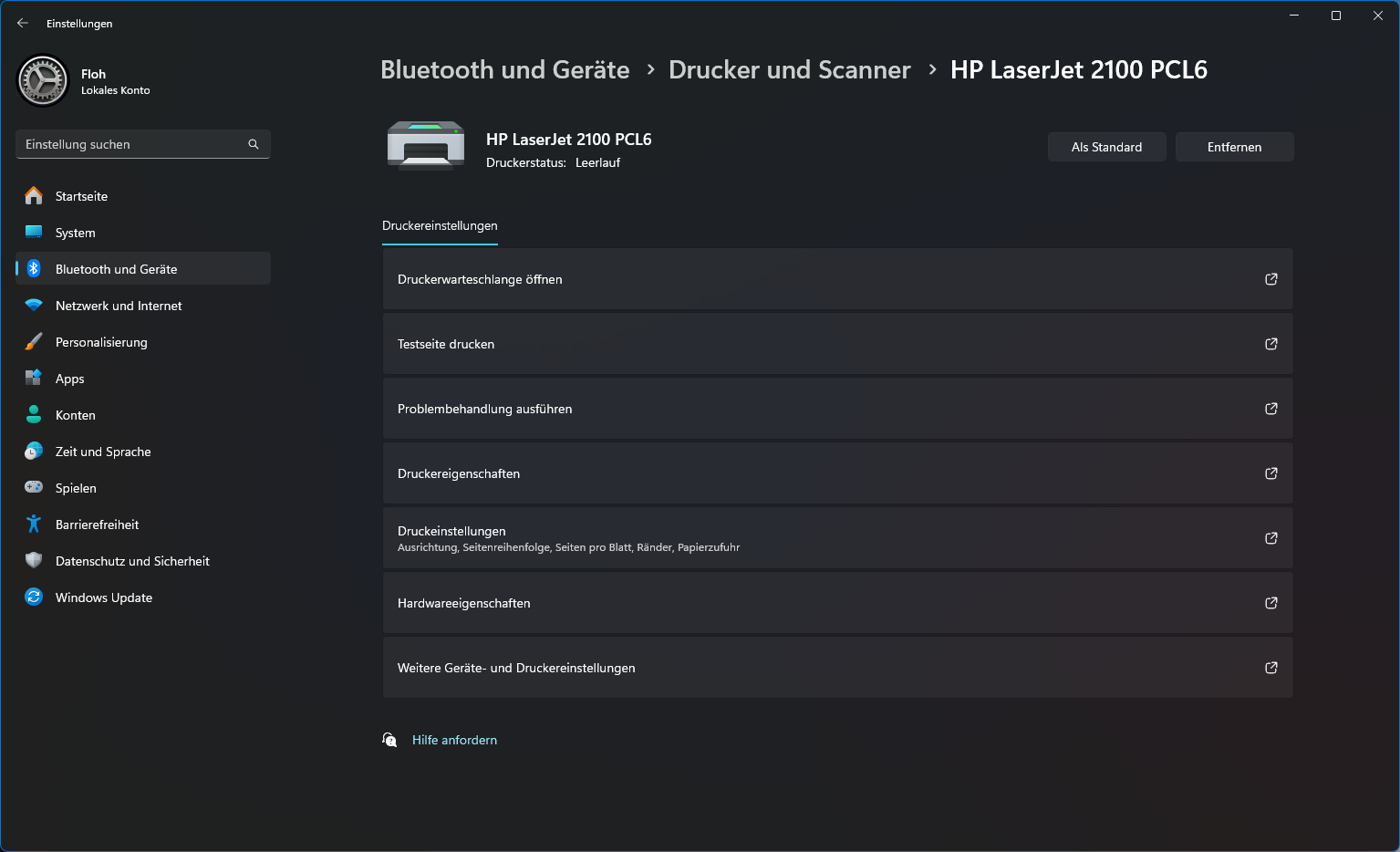
I think this is a great solution, I can’t say otherwise. If all printers worked so smoothly, this issue wouldn’t be such a pain so often. Here you can see how the printer was correctly installed under Windows 11:
Conclusion and thoughts on this printer:
As expected, the device is very slow when it comes to complex documents—really extremely slow.
Large PDFs with many pages can take tens of minutes to print (graphics in particular slow it down considerably). This is where you really notice the extremely outdated hardware struggling with modern data volumes (16 MB of RAM isn’t exactly a lot either, which doesn’t help).
For text documents or simpler print jobs, on the other hand, it is downright fast, and the print quality is very good, which surprised me. The opacity is comparable to a brand-new laser printer, as is the sharpness.
Based on my experience with this model, I would say that it is ideal for use as a label printer, e.g. for shipping labels, in conjunction with self-adhesive paper labels (e.g. from Avery Zweckform*). Or for invoices, delivery notes, labels, and data sheets. Anything that consists mainly of text or simpler structures. The 2100M can play to all its strengths with such requirements and is incomparably robust and inexpensive.
I also find it technically interesting that inside there is an Intel 80960J RISC processor with an impressive 66 MHz driving a 33 MHz bus. Who can say that their printer has “Intel Inside”?
Even if it’s not an x86 processor, which Intel is known for.
All the components I bought for upgrading or retrofitting cost less than €50, including everything except paper. Monochrome laser printing doesn’t get much cheaper than this – the brand-new toner cartridge could last for 5,000 pages.
I’m satisfied and confident that this 2100M has the potential to last for decades to come.
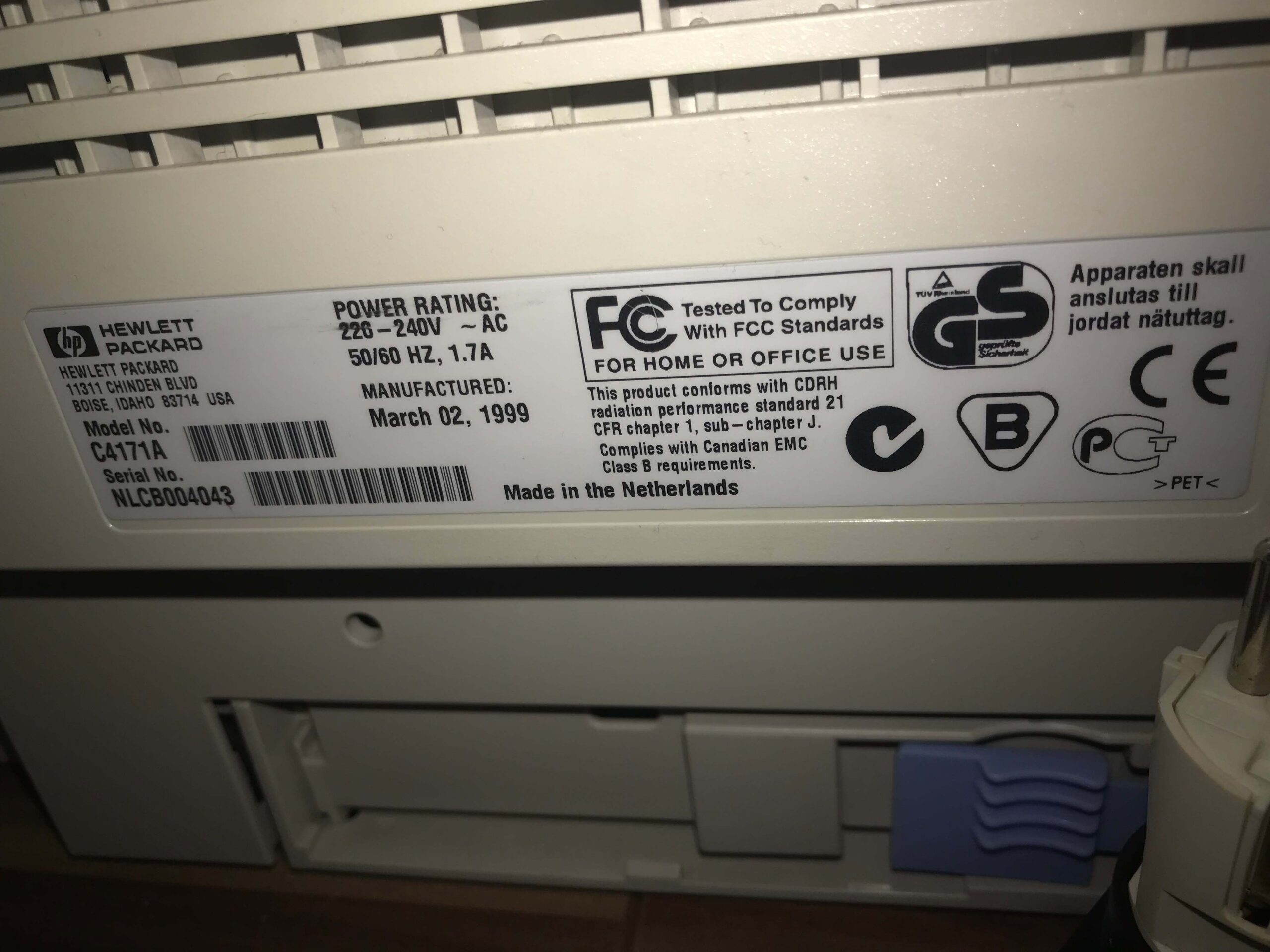
Finally, here is a photo of the “nameplate” on my model: