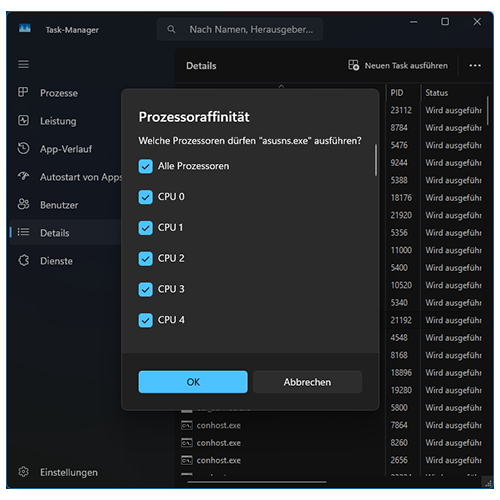
In the past, this function was probably rarely used but since the basic physical structure of x86 processors has changed significantly in recent years, we can now be glad that this API function exists. We are talking about what is known as process affinity: this allows you to determine on which logical processor a task should be executed.
The potential applications become apparent when considering how modern CPUs (including ARM) function. Intel, in particular now offers “performance-” and “efficiency cores”. AMD has models such as the Ryzen 9 5900X and 5950X*, which have two chiplets with 6 and 8 cores respectively, and only the first chiplet achieves the advertised clock speeds because it was built with better silicon quality.
The scheduler in the operating system normally distributes processes to logical cores or threads on its own, i.e., it pushes performance-hungry processes to cores that are known to be powerful. However, if you don’t want to rely on this, it is possible to force it.
Compatibility
The underlying Windows functions based on “winbase.h” have existed since Windows XP and Windows Server 2003. The library is Kernel32.lib with the associated Kernel32.dll. Process affinity can therefore be set on all operating systems since Windows XP.
Functionality
It is important to note that the majority of all x86 processors support “simultaneous multithreading” or “hyperthreading” and can therefore execute more than one thread per physical processor core. Hence the term “logical processor” which refers to each thread and not each core.
To stick with the example of the AMD Ryzen 9 5950X: This CPU has 16 physical cores that offer 32 threads with active SMT. So how many CPUs does the process affinity mask / system see?
That’s right, 32.
This is important to keep in mind. The internal distribution follows the initialization logic of the system, i.e., in the example of a 4-core / 8-thread processor with active SMT:
| Physical core | Physical Thread 1 | Physical Thread 2 | Logical processor, physical | Logical processor, SMT |
|---|---|---|---|---|
| 0 | 0 | 1 | CPU0 | CPU1 |
| 1 | 2 | 3 | CPU2 | CPU3 |
| 2 | 4 | 5 | CPU4 | CPU5 |
| 3 | 6 | 7 | CPU6 | CPU7 |
With SMT disabled it would look like this:
| Physical core | Physical Thread 1 | Physical Thread 2 | Logical processor, physical | Logical processor, SMT |
|---|---|---|---|---|
| 0 | 0 | – | CPU0 | – |
| 1 | 1 | – | CPU1 | – |
| 2 | 2 | – | CPU2 | – |
| 3 | 3 | – | CPU3 | – |
Manual usage
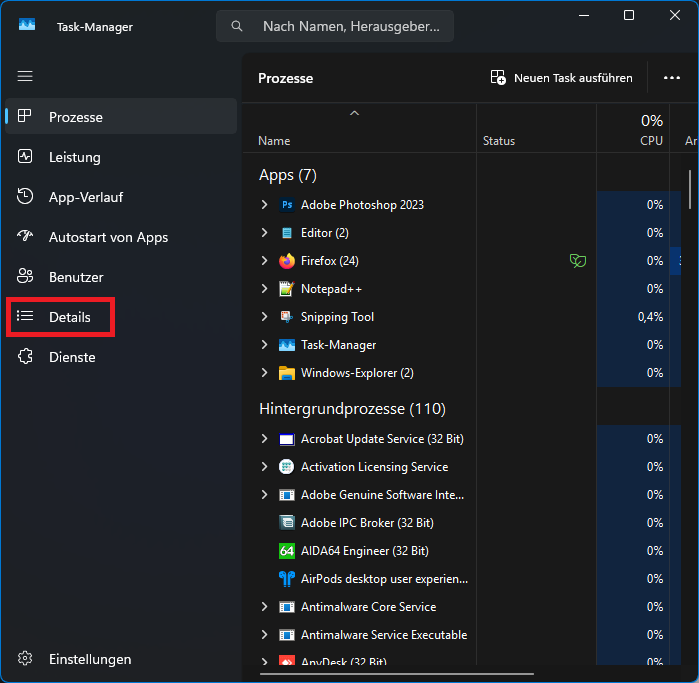
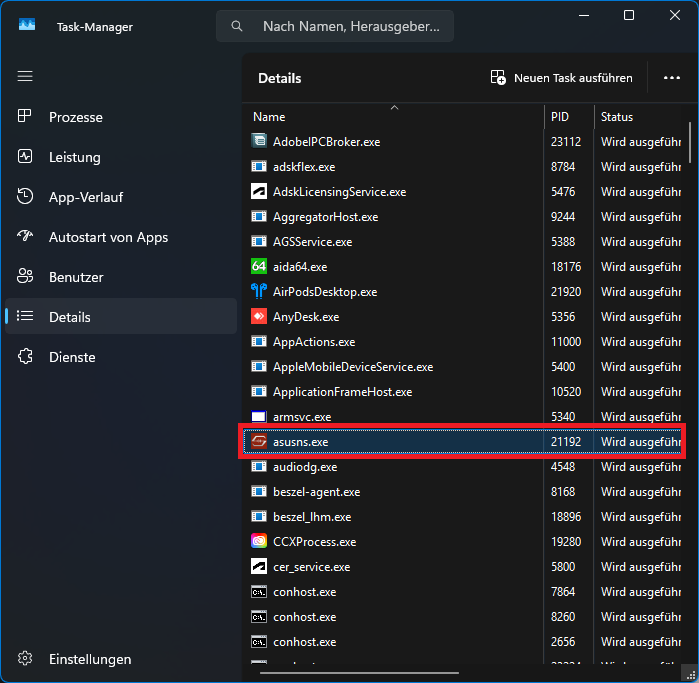
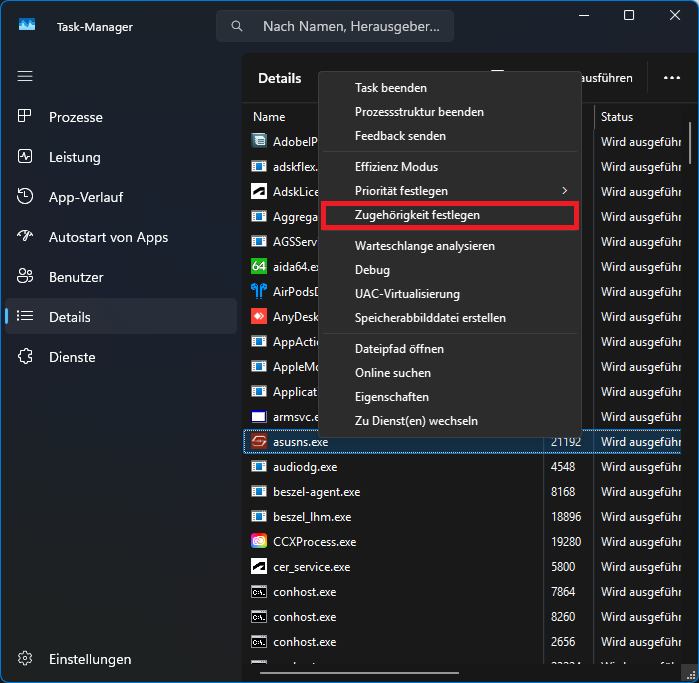
It’s quite simple: The process must be running. Then start the Task Manager, switch to the detailed view and right-click on the process. Clicking on “Set Affinity” opens a dialog box where you can select exactly which logical processors the process should run on and which it should not:
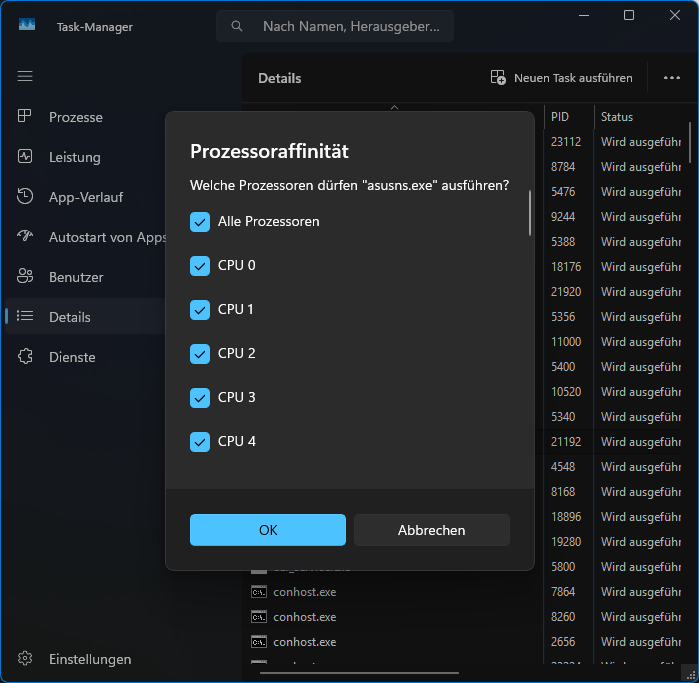
In SysInternals’ “Process Explorer” this also works via the context menu of the process.
Permanent application to a process
Now it gets a little more complex: The function works with bit masks. So in order to determine exactly which logical processors a task should run on, some calculations are required:
| Logical processor | Decimal | 2 x Decimal -1 | Hexadecimal |
|---|---|---|---|
| CPU0 | 1 | 1 | 1 |
| CPU1 | 2 | 3 | 2 |
| CPU2 | 4 | 7 | 4 |
| CPU3 | 8 | 15 | 8 |
To find out the bit mask, the easiest way is to start the calculator in Windows and switch to “Programmer” mode:
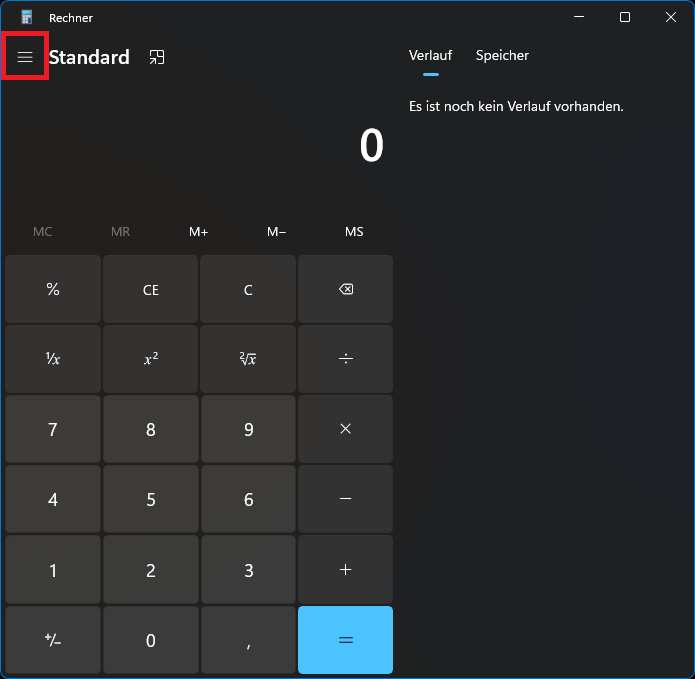
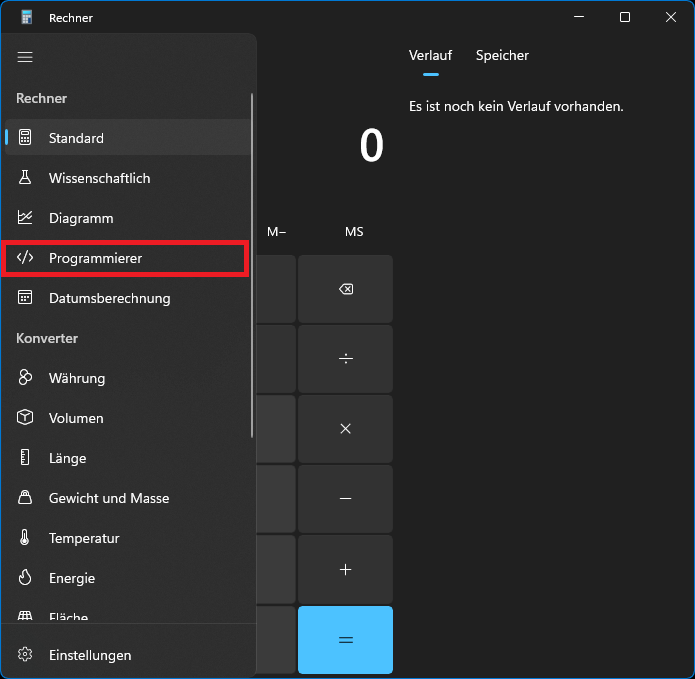
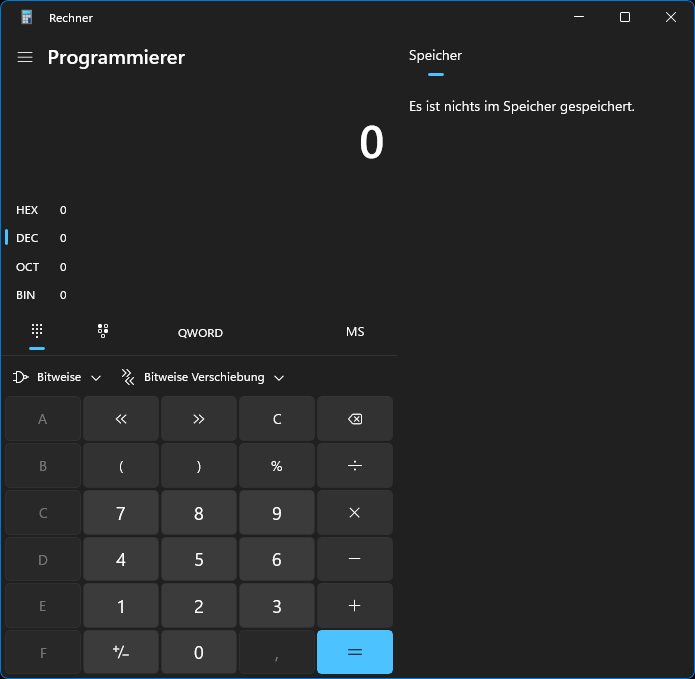
Then simply add up the decimal numbers of the desired logical processors and see what the value is when converted to hexadecimal. That is then the required bit mask. If, for example, you specifically want the process to run on either core 0 or core 3, that is also possible:
1 + 8 equals 9, which is also 9 in hexadecimal, so “9” is the bit mask.
For CPUs with many cores and / or threads, the numbers quickly become big. The limit before NUMA restrictions occur and make the process more complex is 64 logical processors.
Table for up to 32 logical processors
For simplicity’s sake, here is an overview table:
| Physical processor | Logical processor | Decimal | 2 x Decimal -1 |
|---|---|---|---|
| Core 0 Thread 1 | CPU0 | (20) = 1 | 1 |
| Core 0 Thread 2 | CPU1 | (21) = 2 | 3 |
| Core 1 Thread 1 | CPU2 | (22) = 4 | 7 |
| Core 1 Thread 2 | CPU3 | (23) = 8 | 15 |
| Core 2 Thread 1 | CPU4 | (24) = 16 | 31 |
| Core 2 Thread 2 | CPU5 | (25) = 32 | 63 |
| Core 3 Thread 1 | CPU6 | (26) = 64 | 127 |
| Core 3 Thread 2 | CPU7 | (27) = 128 | 255 |
| Core 4 Thread 1 | CPU8 | (28) = 256 | 511 |
| Core 4 Thread 2 | CPU9 | (29) = 512 | 1023 |
| Core 5 Thread 1 | CPU10 | (210) = 1024 | 2047 |
| Core 5 Thread 2 | CPU11 | (211) = 2048 | 4095 |
| Core 6 Thread 1 | CPU12 | (212) = 4096 | 8191 |
| Core 6 Thread 2 | CPU13 | (213) = 8192 | 16383 |
| Core 7 Thread 1 | CPU14 | (214) = 16384 | 32767 |
| Core 7 Thread 2 | CPU15 | (215) = 32768 | 65535 |
| Core 8 Thread 1 | CPU16 | (216) = 65536 | 131071 |
| Core 8 Thread 2 | CPU17 | (217) = 131072 | 262143 |
| Core 9 Thread 1 | CPU18 | (218) = 262144 | 524287 |
| Core 9 Thread 2 | CPU19 | (219) = 524288 | 1048575 |
| Core 10 Thread 1 | CPU20 | (220) = 1048576 | 2097151 |
| Core 10 Thread 2 | CPU21 | (221) = 2097152 | 4194303 |
| Core 11 Thread 1 | CPU22 | (222) = 4194304 | 8388607 |
| Core 11 Thread 2 | CPU23 | (223) = 8388608 | 16777215 |
| Core 12 Thread 1 | CPU24 | (224) = 16777216 | 33554431 |
| Core 12 Thread 2 | CPU25 | (225) = 33554432 | 67108863 |
| Core 13 Thread 1 | CPU26 | (226) = 67108864 | 134217727 |
| Core 13 Thread 2 | CPU27 | (227) = 134217728 | 268435455 |
| Core 14 Thread 1 | CPU28 | (228) = 268435456 | 536870911 |
| Core 14 Thread 2 | CPU29 | (229) = 536870912 | 1073741823 |
| Core 15 Thread 1 | CPU30 | (230) = 1073741824 | 2147483647 |
| Core 15 Thread 2 | CPU31 | (231) = 2147483648 | 4294967295 |
For example, if I want an AMD Ryzen 9 5950X to run the designated process on the potentially faster first 8 cores or 16 threads, the bit mask would be “FFFF” .
Scripting
You can automate the process using Batch or PowerShell. Here is a simple example in Batch:
@echo off
cd "C:\Users\Admin\Desktop\MySoftware"
START /min /affinity FFFF cmd /C "MyProzess.exe -MyParameter1 -MyParameter2"In addition, you can also set the process priority right away:
@echo off
cd "C:\Users\Admin\Desktop\MySoftware"
START /high /min /affinity FFFF cmd /C "MyProzess.exe -MyParameter1 -MyParameter2"Possible values are:
/low
/normal
/high
/realtime
/abovenormal
/belownormal