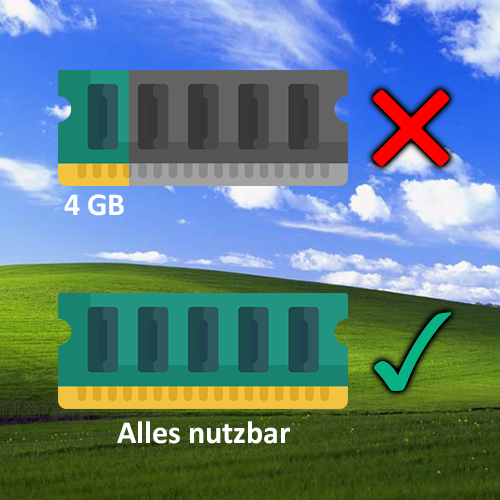
One of the biggest disadvantages of Windows XP is that the most widely used and compatible version is based on 32-bit. This means that a maximum of 4 GB of RAM can be addressed—overhead from drivers and other system components further reduce this already low value. In the most extreme case I have encountered so far, on a Quad-SLI Retro XP PC: Due to four graphics cards and plenty of other hardware, only a meager 1.44 GB of RAM is available. However, a whopping 64 GB are installed there in the form of eight 8 GB memory modules*.
But even the RetroBooks have a maximum of 16 GB of RAM installed, of which only about 3.25 GB can be used under XP. The same applies to the Acer Veriton S670G – 8 GB are available, but less than half can be used.
You could install the 64-bit version of Windows XP, but many things don’t work on it and there are no functioning drivers for some things. Or you could build a hybrid that removes or extends the RAM limitation, but this brings other problems with it. That’s what this is about now:
PAE?
“Physical Address Extension” – The built-in processor must support this. The software support has the same name. Under Windows, the 4 GB limit is artificial: “Product segmentation”. How can you tell? Even Windows 2000 Advanced Server can use more than 4 GB of RAM, as can Server 2003. Both are 32-bit operating systems.
To make 32-bit Windows XP (with a suitable CPU) suitable for up to 128 GB of RAM, you have to implant two components of the 64-bit version of XP and change the boot parameters. However, there are also disadvantages to this, which I will discuss later.
Modification
First, you need to obtain two specific files from Windows XP 64-bit. You can either extract them from the ISO or download them from MediaFire (archive.org).
Then copy both files to “C:\Windows\System32\” under 32-bit XP. Once this is done, you need to edit “boot.ini” – it is best to add a second entry so that you can still boot normally if problems arise.
The easiest way to do this is as follows (boot.ini is hidden by default):
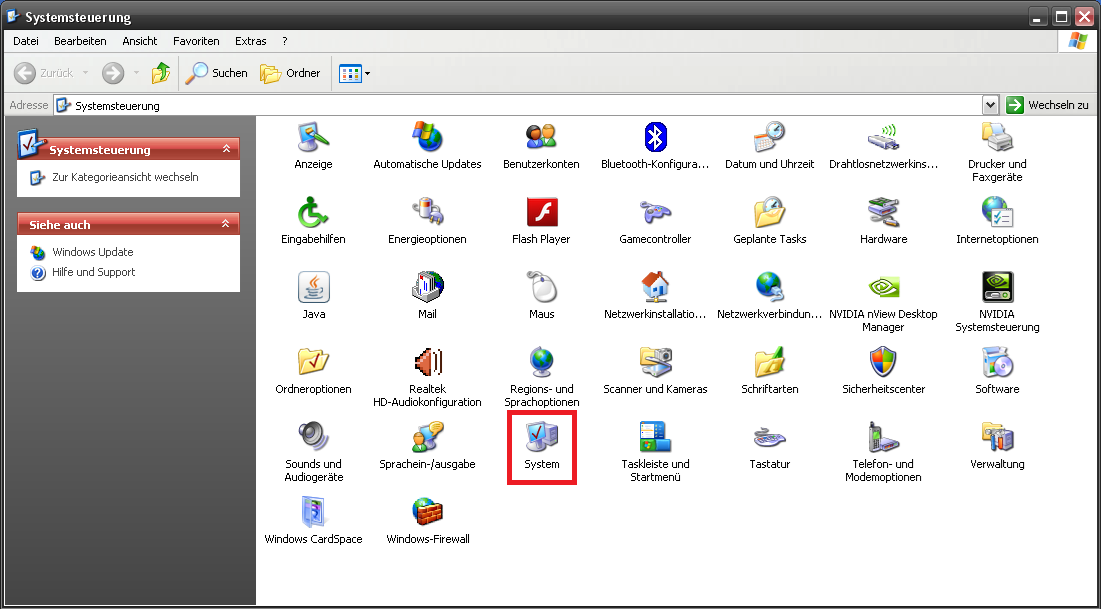
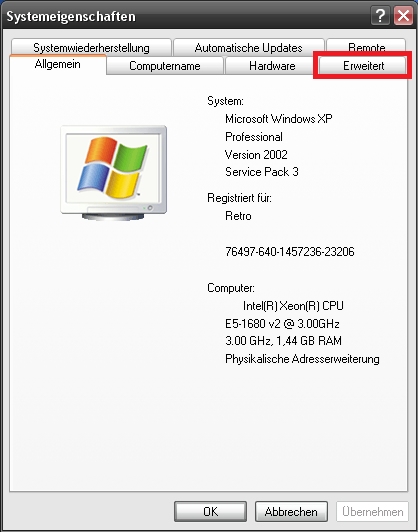
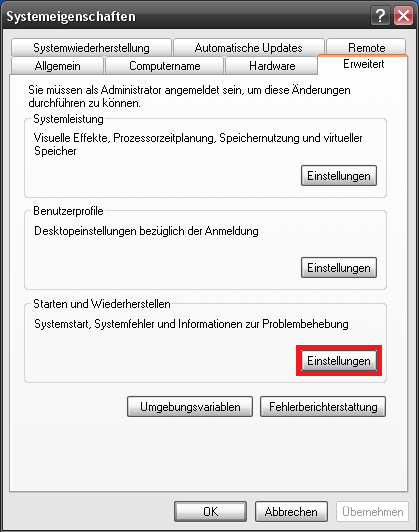
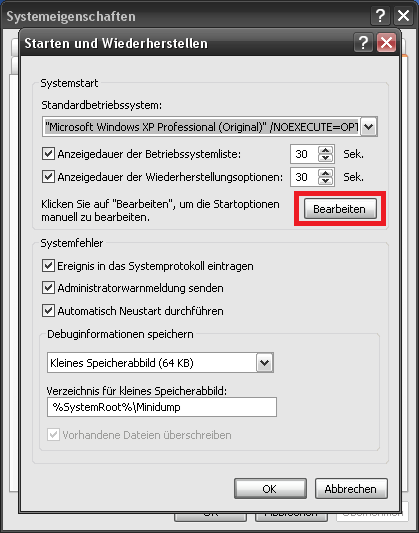
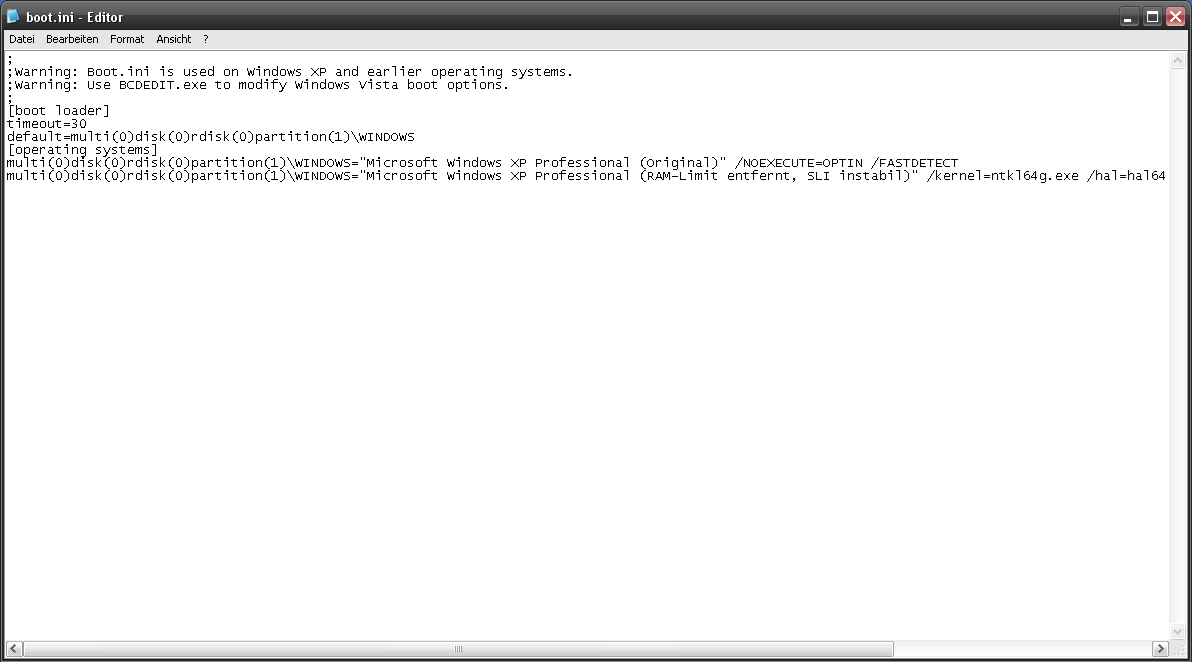
Add a second entry below the existing one (make sure that the partition etc. matches):
multi(0)disk(0)rdisk(0)partition(1)\WINDOWS="Microsoft Windows XP Professional (RAM-Limit entfernt)" /kernel=ntkl64g.exe /hal=hal64g.dll /fastdetect /PAE /noexecute=alwaysoffThe entire “boot.ini” should then look something like this:
;
;Warning: Boot.ini is used on Windows XP and earlier operating systems.
;Warning: Use BCDEDIT.exe to modify Windows Vista boot options.
;
[boot loader]
timeout=30
default=multi(0)disk(0)rdisk(0)partition(1)\WINDOWS
[operating systems]
multi(0)disk(0)rdisk(0)partition(1)\WINDOWS="Microsoft Windows XP Professional (Original)" /NOEXECUTE=OPTIN /FASTDETECT
multi(0)disk(0)rdisk(0)partition(1)\WINDOWS="Microsoft Windows XP Professional (RAM-Limit entfernt)" /kernel=ntkl64g.exe /hal=hal64g.dll /fastdetect /PAE /noexecute=alwaysoffThen simply save the file with CTRL+S or via the menu, close everything, and restart the computer. When booting up, a selection menu should now appear each time, allowing you to choose between the two entries.
Alternatively, you can also use a patcher, but I prefer the method with the additional original files from Microsoft.
Side effects
Some problems have been reported, the most common being:
- General instability
- Driver problems
- Bluescreens
- Disk formatting rarely works or no longer works at all
- Problems with standby or power states in general
These problems may or may not occur. Personally, I have only encountered the problem with disk formatting on RetroBooks – and that the boot process occasionally fails and simply continues loading indefinitely. Once the system is up and running, there is no instability.
Incidentally, a single process still cannot use more than 2 GB. So “only” the overall system benefits in the form of more breathing room.
Conclusion
This modification is not 100% reliable. However, since you can boot normally at any time, it’s a nice, playful addition that you can choose to use or not use each time you start up.
I have modified all XP-based systems with more than 4 GB of physical RAM in this way.